
CSV Exports are available on all paid plans (Growth and Scale). Upgrade to access
Overview
CSV Exports let you download your Trakkr data in flexible formats for offline analysis, custom reporting, or integration with other tools. Choose from three export types depending on your needs.When to Use CSV Exports
CSV Exports are ideal for:- One-time analysis - Download data when you need it, not on a schedule
- Offline work - Analyze data in Excel, R, Python, or other offline tools
- Custom date ranges - Export specific time periods for reports
- Flexibility - Mix and match export types for different needs
- No automation needed - Manual exports when you need them
Consider These Alternatives
Google Sheets
Better for: Daily auto-sync, team collaboration, always-current data
API
Better for: Automated workflows, custom integrations, real-time access
Export Types
Top-Level
Best for: Executive dashboards, trend analysis, and high-level reporting A comprehensive overview of brand performance over time, ideal for executive dashboards and trend analysis. Columns included:- Date: Daily timestamp
- Brand: Your brand name
- Visibility: Daily visibility score
- Presence: Daily presence score
Detailed
Best for: In-depth analysis, prompt-level optimization, and content strategy Focused analysis of your primary brand’s ranking performance across different prompts and models. Columns included:- Date: Daily timestamp
- Prompt: The specific prompt tracked
- Tag: Prompt category/tag (if enabled)
- Model: AI model that generated the response
- Rank: Your brand’s ranking position
Raw Data
Best for: Competitive intelligence, market analysis, and comprehensive data science projects Complete competitive intelligence with full rankings from every AI response. Columns included:- Date: Daily timestamp
- Prompt: The specific prompt tracked
- Tag: Prompt category/tag (if enabled)
- Model: AI model that generated the response
- Rank1 through Rank10: Brands ranked in positions 1-10
Creating an Export
1
Navigate to CSV Exports
Go to Integrations → CSV Exports.
2
Choose your export type
Select Top-Level, Detailed, or Raw Data based on your needs.
3
Review columns
See which columns will be included in your export to ensure it matches your requirements.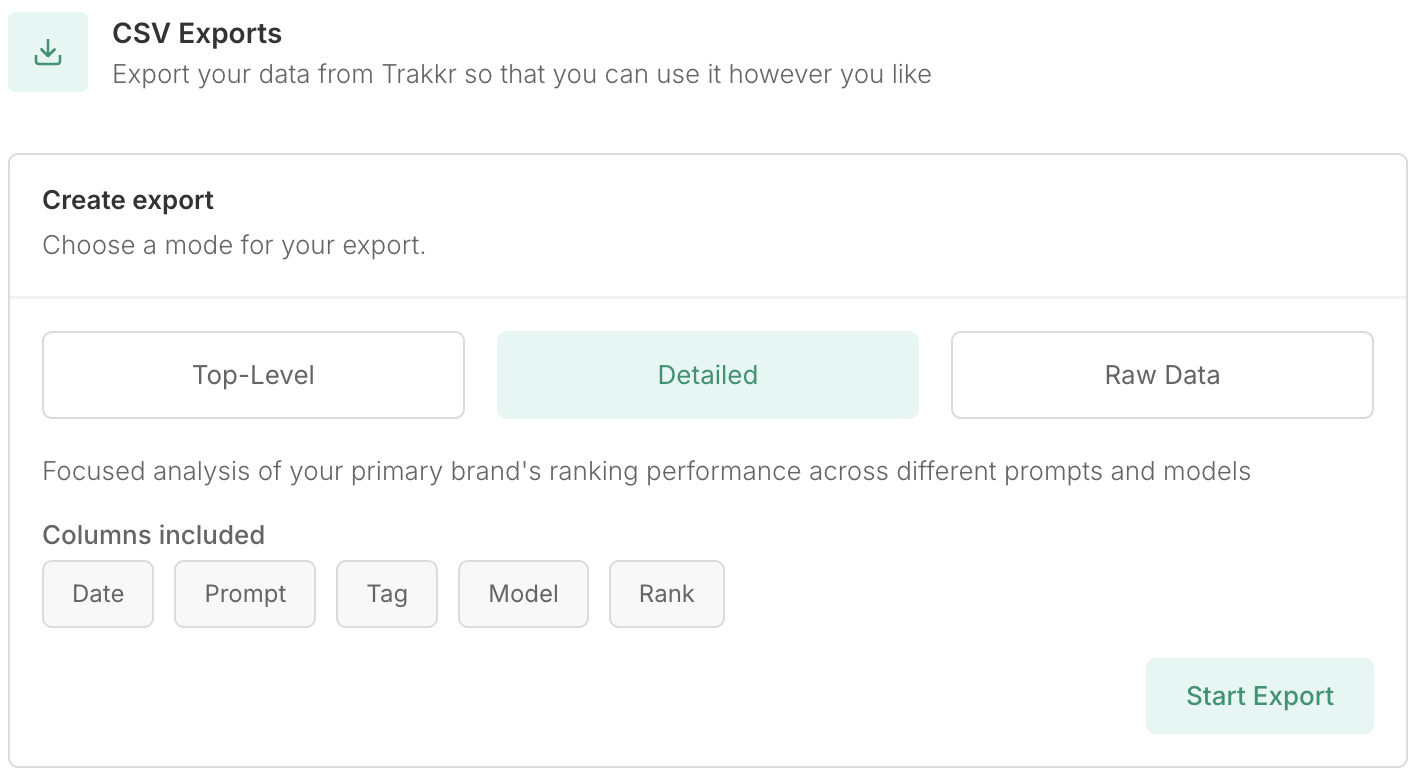
4
Start the export
Click Start Export. The export typically completes within 30 seconds.
Managing Exports
Viewing Previous Exports
All your generated exports appear in the [Brand]‘s exports section below the creation form.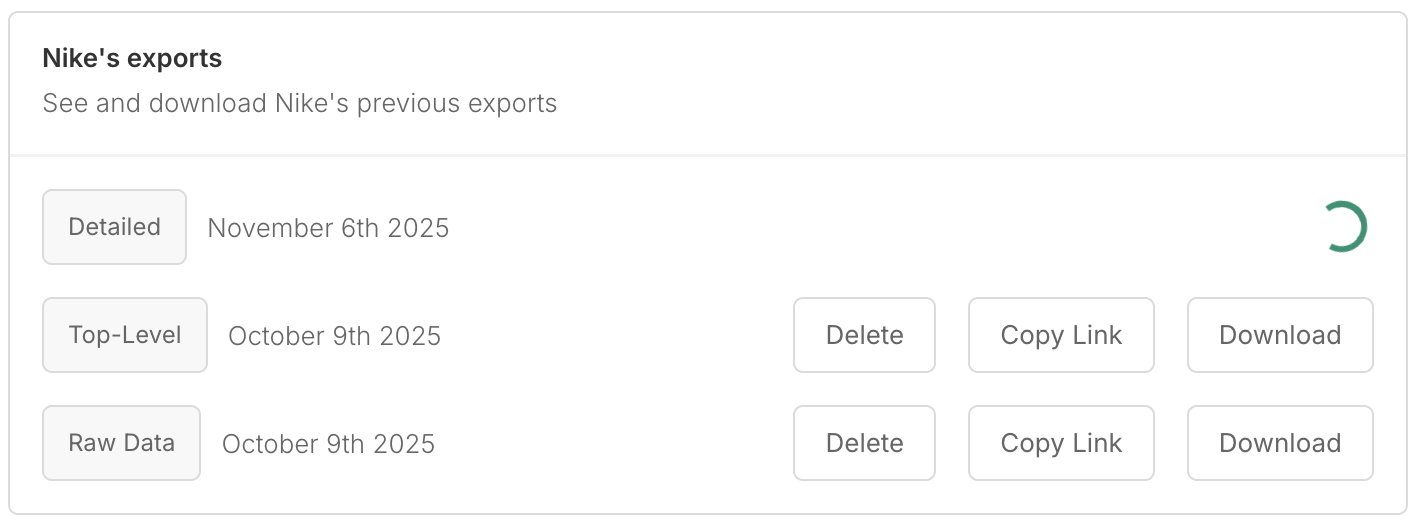
- Download: Save the CSV file to your computer
- Copy Link: Get a shareable link to the export file
- Delete: Remove the export from your account
Export files are automatically deleted after 30 days. Download important exports for long-term storage.
Export Retention
- Storage period: 30 days from creation
- File format: Standard CSV (comma-separated values)
- Naming: Exports are labeled by type and creation date
Use Cases
Executive Reporting
Executive Reporting
Use Top-Level exports to create executive dashboards in Excel, Tableau, or PowerPoint. Show visibility and presence trends over time with clean, aggregated data.
Content Optimization
Content Optimization
Use Detailed exports to identify which prompts need improvement. Filter by tag to analyze category performance and prioritize content updates.
Competitive Analysis
Competitive Analysis
Use Raw Data exports to understand the complete competitive landscape. Identify which competitors consistently outrank you and on which prompts.
Data Science Projects
Data Science Projects
Use Raw Data exports for machine learning or statistical analysis. The comprehensive dataset includes all competitors and historical performance.
Client Reporting
Client Reporting
Agencies can use Top-Level exports to create client reports showing performance improvements over time. Combine with competitive data from Raw Data exports.
Tips for Working with CSV Exports
Data Analysis
- Pivot tables: Use Excel or Google Sheets pivot tables to aggregate and analyze data
- Charts: Create time-series charts to visualize visibility and presence trends
- Filtering: Filter by date range, prompt, or model to focus on specific insights
Combining Export Types
Consider using multiple export types for comprehensive analysis:- Top-Level for overall trend visualization
- Detailed for prompt-specific optimization
- Raw Data for competitive intelligence
Automation
For automated data pipelines, consider using the API or Google Sheets sync instead of manual CSV exports.Troubleshooting
Export Taking Too Long
Exports typically complete within 30 seconds. If an export takes longer:- Check your internet connection
- Refresh the page to see if the export has completed
- Try creating a new export if the first attempt fails
Missing Data
If your export appears incomplete:- Ensure you have tracking data for the selected time period
- Verify that prompts are active and running
- Check that you’re on a paid plan (required for exports)
File Format Issues
If you encounter issues opening CSV files:- Ensure you’re using a compatible application (Excel, Google Sheets, etc.)
- Check that the file extension is
.csv - Try opening with a text editor to verify the file structure