
Free plans get 1 single-page audit. Paid plans get unlimited audits for both single pages and full site scans. Upgrade for full access
Why Technical Optimization Matters
When AI models crawl your website, they’re looking for clear signals about what your content means, how it’s structured, and whether it’s trustworthy. Technical issues create blind spots—AI models might:- Miss important pages due to crawlability issues
- Misunderstand your content without proper structured data
- Struggle to extract key information from poorly formatted content
- Deprioritize your site due to accessibility or rendering problems
Getting Started
Running Your First Audit
Navigate to the Technical Audit section where you can run your first scan.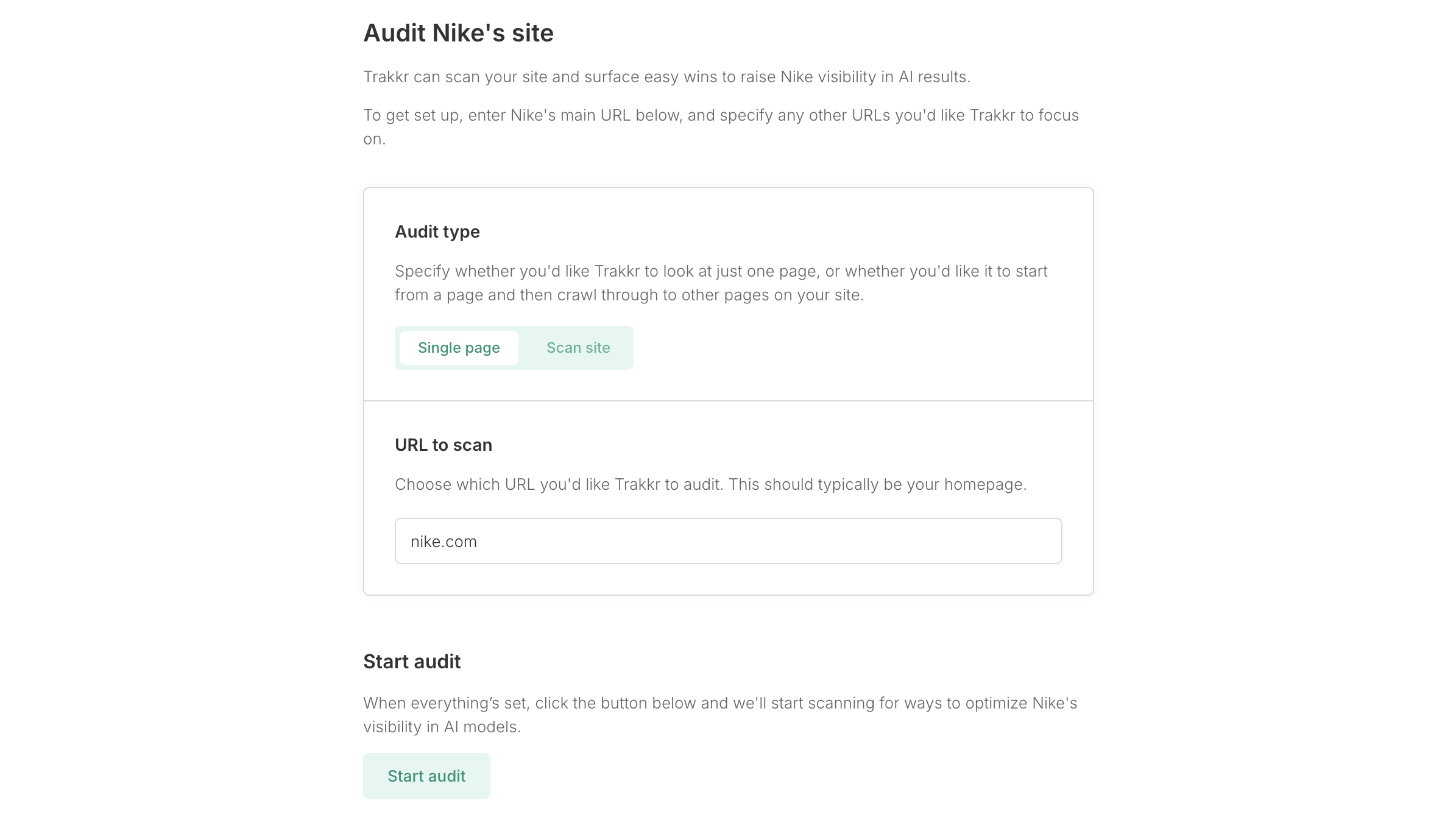
Choose Your Audit Type
- Single Page
- Scan Site
Best for: Testing specific high-priority pages like your homepage, key landing pages, or product pages.How it works: Analyzes a single URL in depth, checking all technical aspects of that specific page.Setup:
- Enter the URL you want to audit
- Click “Start audit”
- Results ready in ~30 seconds
Free plan users can run one single-page audit. Upgrade to paid plans for unlimited audits.
What Gets Analyzed
Trakkr examines your site across five key areas that matter most to AI models:Discoverability & Crawlability
Can AI crawlers find and access your content? Checks robots.txt, sitemaps, HTTP status, canonical tags, and indexability.
Accessibility & Rendering
Can AI models properly render and read your content? Checks page speed, mobile optimization, and rendering issues.
Content Quality
Is your content structured for AI understanding? Checks headings, content density, readability, and information architecture.
Structured Data & Semantics
Does your site provide clear semantic signals? Checks schema markup, meta tags, and structured data implementation.
Answer-Friendly Formatting
Is your content formatted for AI extraction? Checks lists, tables, FAQs, and content organization that AI models prefer.
Understanding Your Results
After your audit completes, you’ll see results organized into three main tabs: Overview, Actions, and Technical.Overview Tab
The Overview tab gives you an at-a-glance summary of your site’s AI optimization.
- 65+: Excellent AI optimization
- 50-64: Good foundation with room for improvement
- 35-49: Moderate optimization, several issues to address
- Below 35: Significant technical barriers for AI crawlers
- Excellent: This area is well-optimized for AI models
- Good: Solid performance with minor improvements possible
- Average: Some issues that should be addressed
- Needs Improvement: Multiple issues requiring attention
Actions Tab
The Actions tab shows prioritized recommendations for improving your site’s AI visibility. Each action is ranked by impact, effort, and overall priority to help you focus on what matters most.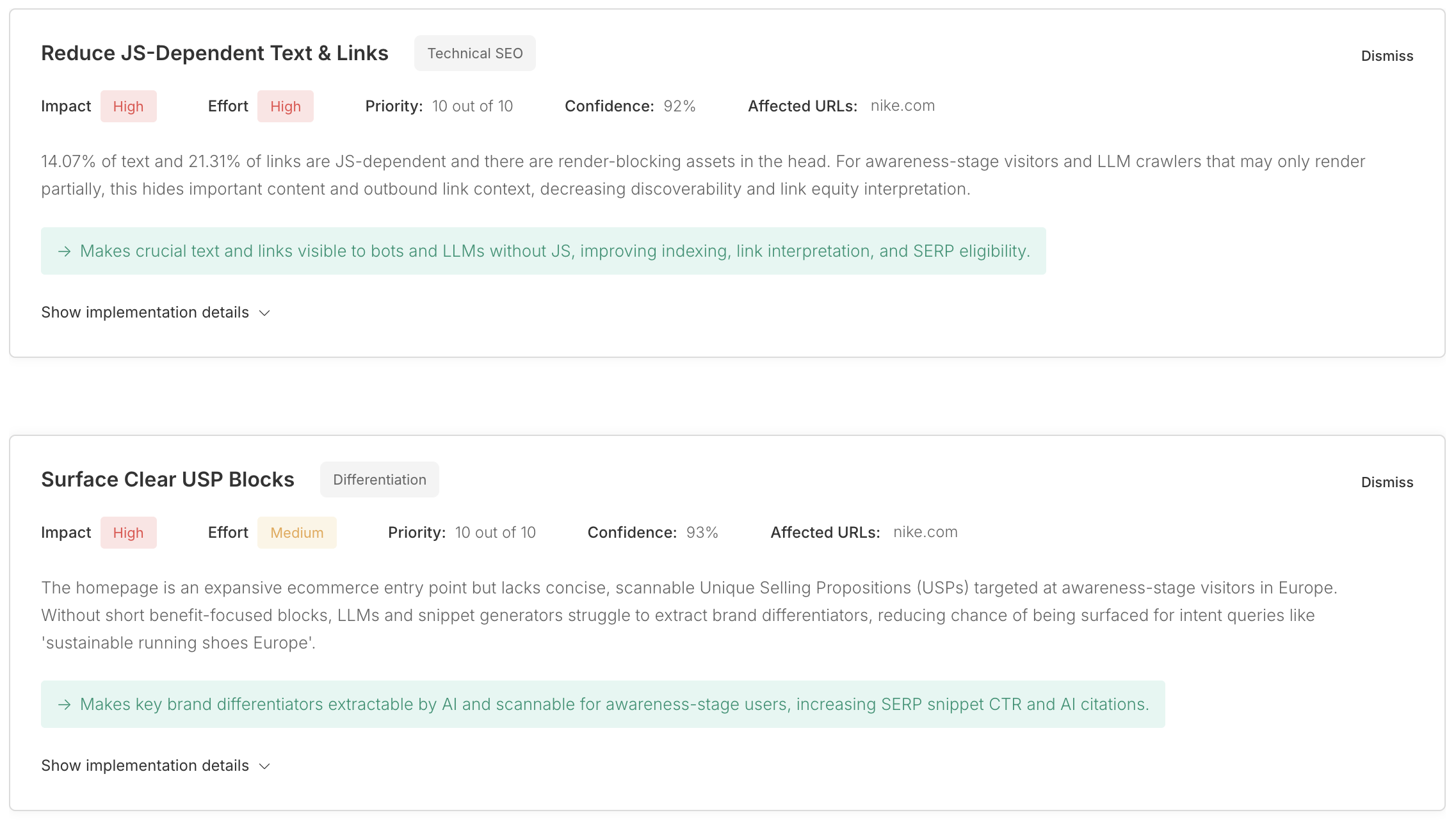
Understanding Action Attributes
Each recommendation shows several key details to help you decide what to work on:| Attribute | Description |
|---|---|
| Impact | How much this change will improve AI understanding (High/Low) |
| Effort | How difficult this is to implement (High/Low) |
| Priority | Overall importance ranking (1-10 scale) |
| Confidence | How certain we are this applies to your site (percentage) |
| Affected URLs | Which pages have this issue |
Viewing Action Details
Click on any action to expand and see complete implementation guidance: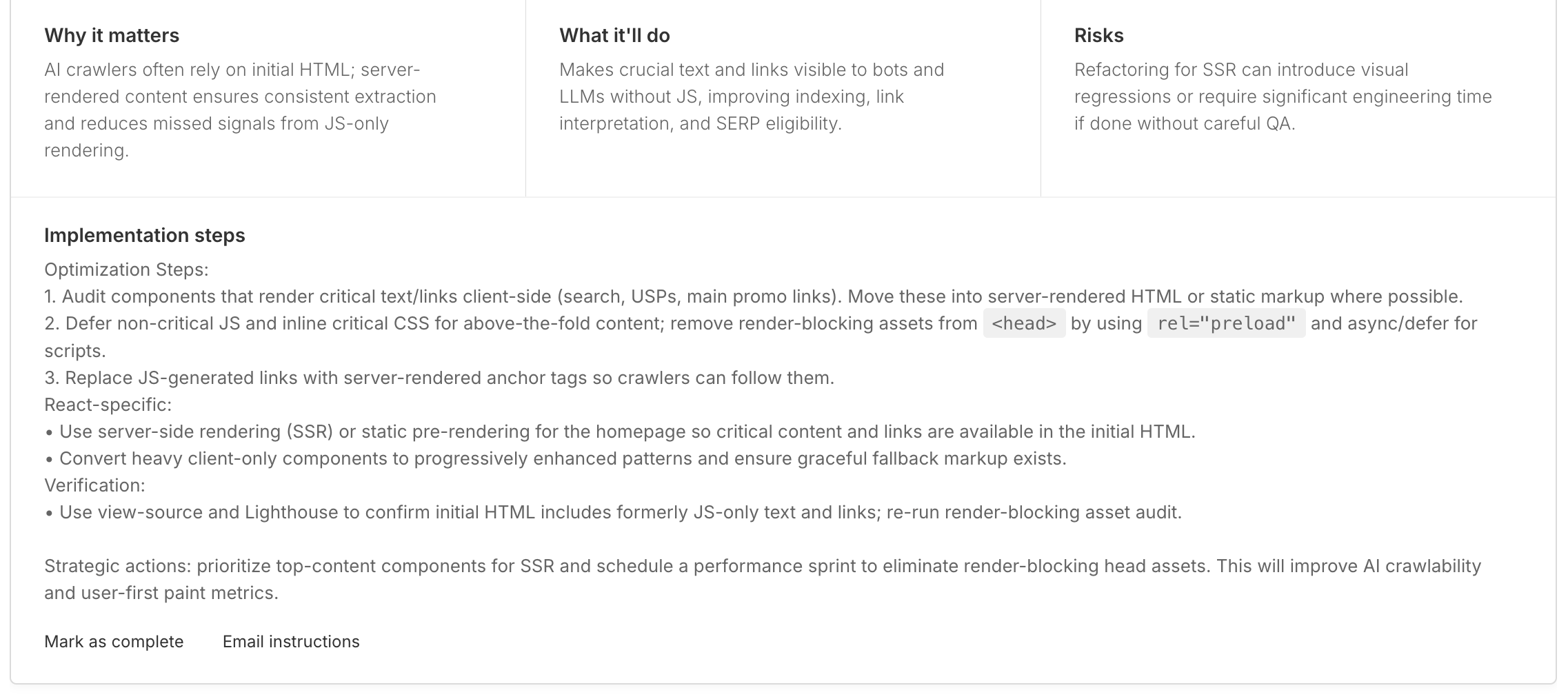
Collaborating with Developers
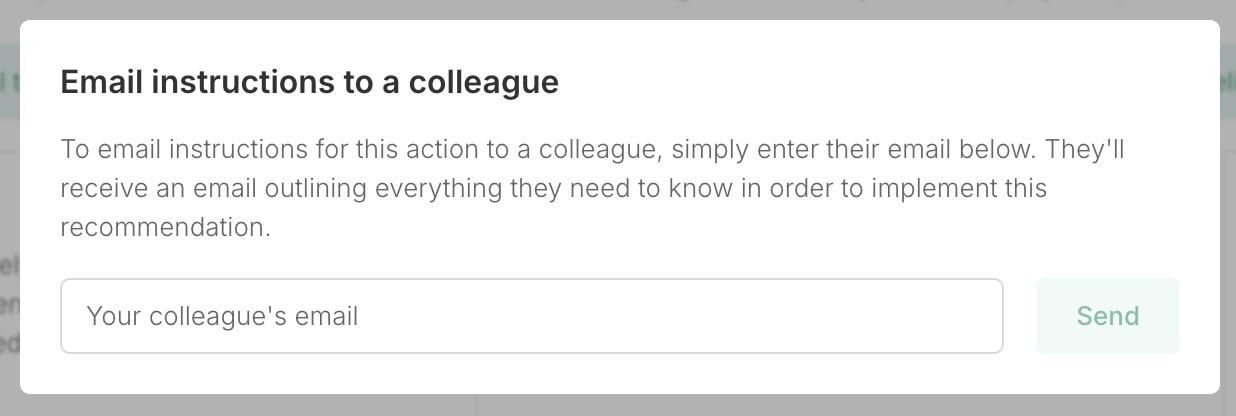
If you’re not implementing the fixes yourself, you can easily delegate:- Click “Email instructions” on any action
- Enter your developer’s email address
- They’ll receive a link with the full action details and implementation steps
Managing Actions
Mark as complete Once you’ve implemented a fix, click “Mark as complete.” This removes the action from your list and teaches Trakkr not to flag this issue again on future scans. Dismiss If you’ve decided not to implement a particular action, click “Dismiss” in the top right. Trakkr will learn your preference and won’t show this recommendation on future scans.Technical Tab
The Technical tab provides detailed diagnostic information organized by severity and category. This is where you can drill into specific checks and understand exactly what’s passing, what needs attention, and what’s critical.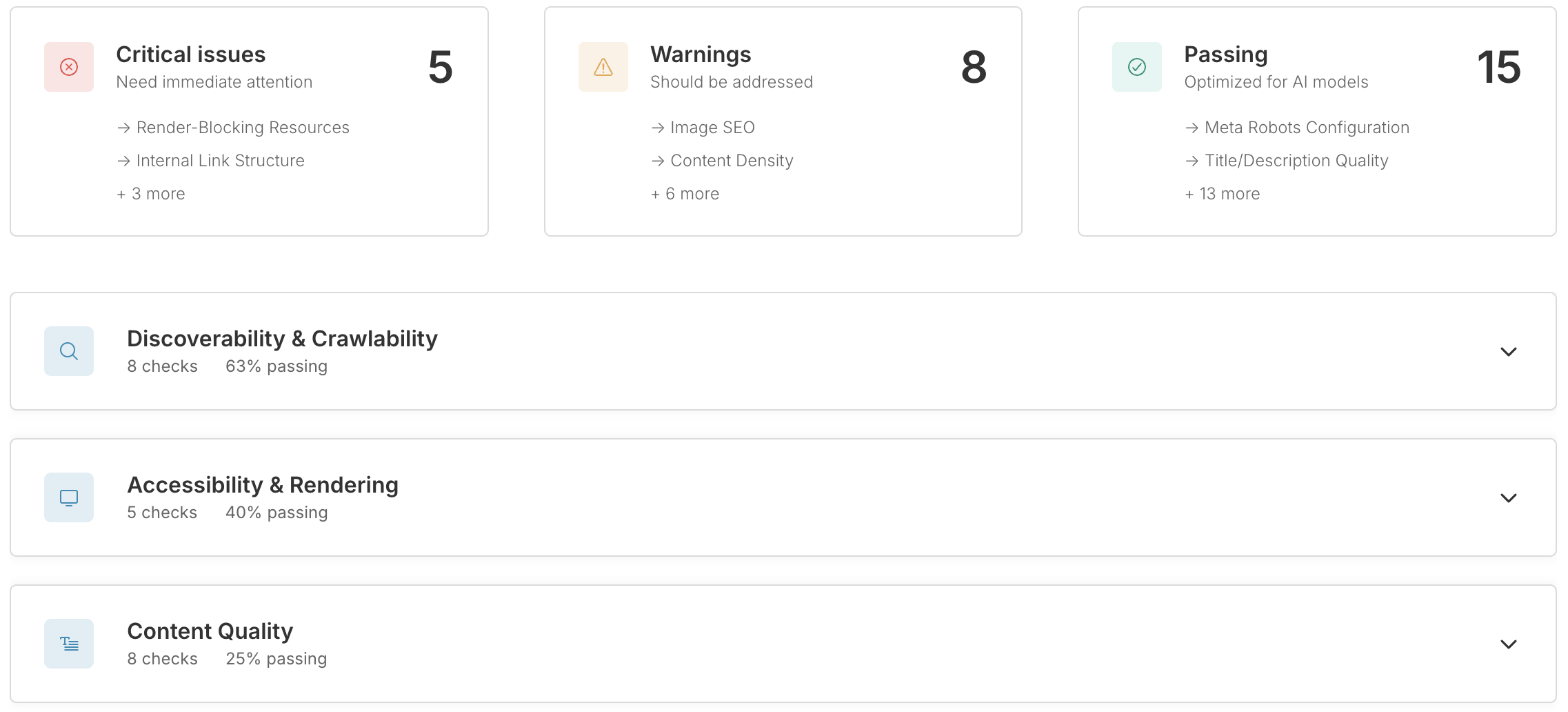
Issue Severity Levels
Issues are grouped by how urgently they need attention: Critical Issues Problems that significantly harm AI crawler understanding. These create major blind spots and should be addressed as soon as possible. Warnings Issues that should be addressed but aren’t completely blocking AI understanding. These represent opportunities for improvement. Passing Checks that passed successfully—areas where your site is already optimized for AI models.Exploring by Category
The Technical tab shows all five main categories with pass/fail counts:- Discoverability & Crawlability
- Accessibility & Rendering
- Content Quality
- Structured Data & Semantics
- Answer-Friendly Formatting

Understanding Individual Checks
Each expanded check shows:- Check name: What’s being tested (e.g., “Canonical Tags”, “Meta Robots Configuration”)
- Status icon: ✓ Pass, ⚠ Warning, or ✗ Critical
- Impact level: High/Medium/Low—how much this affects AI visibility
- Description: What this check means and why it matters
- URLs checked: Which pages were tested for this issue
- Details: Specific findings and context
- Understanding the technical foundation behind your actions
- Investigating specific categories where you have issues
- Verifying fixes after implementation
- Detailed diagnostics for developers
Tracking Progress Over Time
Audit History
Every audit you run is saved in your history. Access previous scans to:- Compare changes after implementing fixes
- Track which issues have been resolved
- Review recommendations from past audits
Coming soon: Automated score tracking over time with trend graphs showing your improvement across audits.
Running Follow-Up Audits
After implementing fixes, run a new audit to verify improvements:- Click “New Scan” in the top right
- Choose the same audit type and URLs
- Compare your new score and resolved issues
- Audit before and after major changes
- Test different pages across your site
- Monitor ongoing optimization efforts
- Validate developer implementations
Strategic Use of Technical Audit
For Non-Technical Teams
You don’t need to be a developer to use Technical Audit effectively:- Run the audit on your key pages (homepage, top landing pages, product pages)
- Review the Overview to understand high-level issues
- Check the Actions tab for prioritized recommendations
- Email instructions to your development team with specific actions
- Track completion by marking actions as complete once implemented
For Technical Teams
Use Technical Audit as a diagnostic and prioritization tool:- Run full site scans to identify systemic issues
- Use the Technical tab to understand root causes
- Implement fixes following the detailed implementation steps
- Verify with follow-up audits after deployment
- Monitor trends as you make ongoing improvements
Integration with Content Strategy
Technical Audit works best alongside content optimization:- Fix technical barriers first so AI models can properly access your content
- Use recommendations to improve content formatting (headings, lists, structure)
- Implement structured data to help AI models understand your content meaning
- Create answer-friendly formats that AI models prefer to cite
Common Audit Issues and Fixes
Discoverability Issues
Problem: AI crawlers can’t find or access your content Common causes:- Missing or misconfigured robots.txt
- No XML sitemap
- Broken canonical tags
- 4xx/5xx HTTP errors
Structured Data Gaps
Problem: Your content lacks semantic signals for AI understanding Common causes:- No schema markup
- Missing meta tags
- Incomplete Article or Product structured data
Content Formatting Issues
Problem: Content isn’t organized in AI-friendly formats Common causes:- Missing or generic H1 tags
- No clear heading hierarchy
- Dense paragraphs without lists or structure
- Missing FAQ formats
Rendering Problems
Problem: AI crawlers can’t properly render your page Common causes:- JavaScript-only rendering
- Slow page speed
- Mobile rendering issues
- Critical resources blocked
Best Practices
Start with single-page audits on your most important pages Your homepage and top landing pages drive the most visibility. Fix issues here first for maximum impact. Focus on Critical and High Impact issues first Not all issues are equally important. Prioritize based on severity and impact rather than trying to fix everything at once. Implement fixes in batches Group related fixes together (e.g., all structured data improvements) for efficient implementation and testing. Run follow-up audits after major changes Verify your fixes worked and catch any unintended side effects before moving on to the next batch. Use the Technical tab for troubleshooting If an Action recommendation isn’t clear, check the Technical tab for detailed diagnostics and specific findings. Save developer time with specific instructions Instead of generic “fix our SEO” requests, email specific Action instructions that developers can implement immediately. Consider both AI and traditional SEO Many Technical Audit recommendations benefit both AI visibility and traditional search rankings—you’re improving both simultaneously.Understanding CMS-Specific Recommendations
Trakkr automatically detects your CMS by analyzing your page HTML and provides tailored implementation instructions: WordPress: Plugin recommendations, settings locations, code snippets for functions.php or child themes Webflow: Specific UI locations, custom code placement, collection settings Shopify: Theme customizations, app recommendations, liquid template edits Custom builds: Clean code examples, framework-specific implementations, general best practices This means you get actionable instructions regardless of your technical environment—no translation required.Content Optimization
Optimize your content strategy for AI models after fixing technical issues
Understanding Scores
Learn how technical improvements affect your visibility and presence metrics
Prism for Advanced Optimization
Take your AI optimization further with dynamic content serving for AI crawlers