
Google Analytics integration is available on paid plans only. Upgrade to access
Overview
Connect your Google Analytics 4 (GA4) property to Trakkr to see detailed breakdowns of traffic from AI sources like ChatGPT, Perplexity, Gemini, Claude, and Grok. This integration helps you understand how users referred by AI models interact with your site, track conversions, and measure engagement.Complete Tracking Suite
Google Analytics integration works alongside Trakkr’s other tracking features:Crawler Analytics
Monitor which AI crawlers visit your site to train their models
Working with Prompts
Track which prompts drive the traffic you see in Google Analytics
Setup
Connecting Your GA4 Property
1
Navigate to Integrations
Go to Integrations from your Trakkr dashboard sidebar, then select Google Analytics.
2
Connect with Google
Click Connect to Google Analytics and sign in with your Google account. Make sure you use an account with read access to the GA4 property you want to track.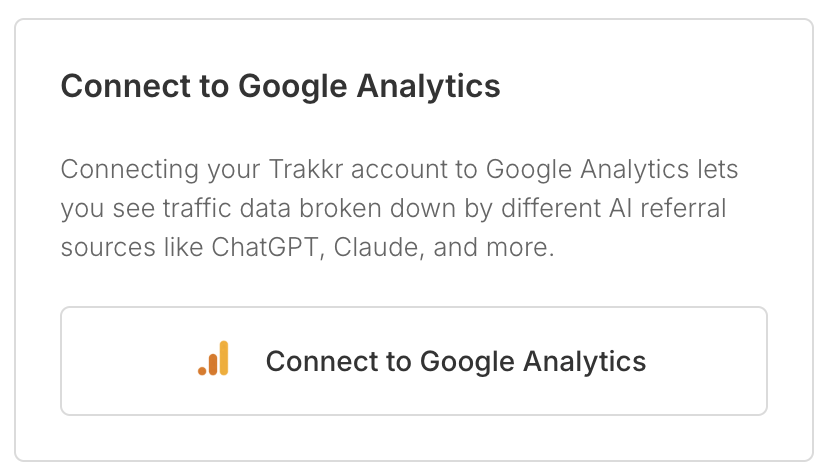
3
Select Your Property
Choose the GA4 account and property you want to connect to this brand. Each Trakkr brand connects to one GA4 property.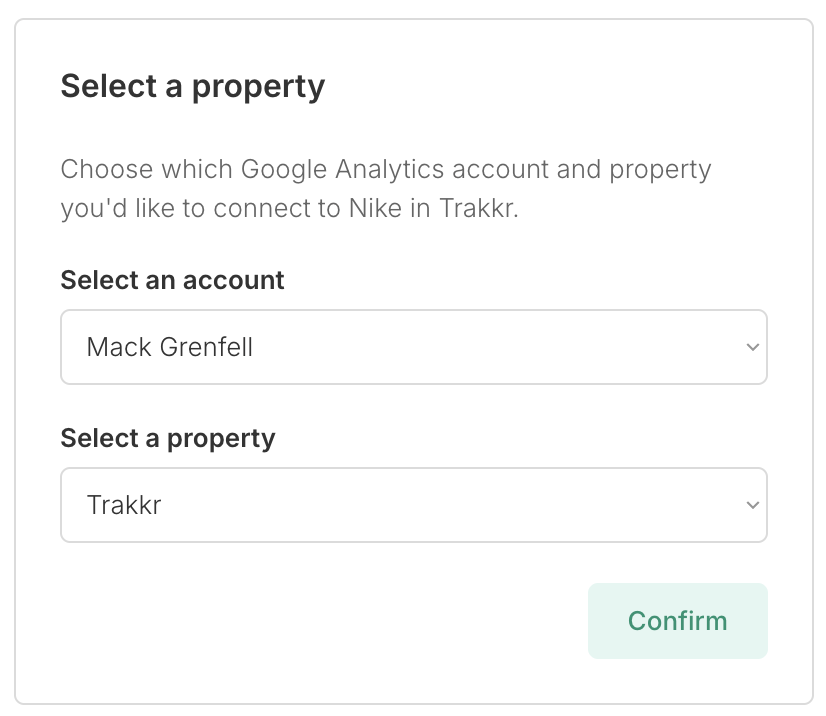
4
Complete Setup
Trakkr will load your analytics data and display your dashboard. This may take a few seconds for high-traffic properties.
Important: Ensure your Google account has read access to the GA4 property. Without proper permissions, the connection will fail.
Understanding the Dashboard
Summary Metrics
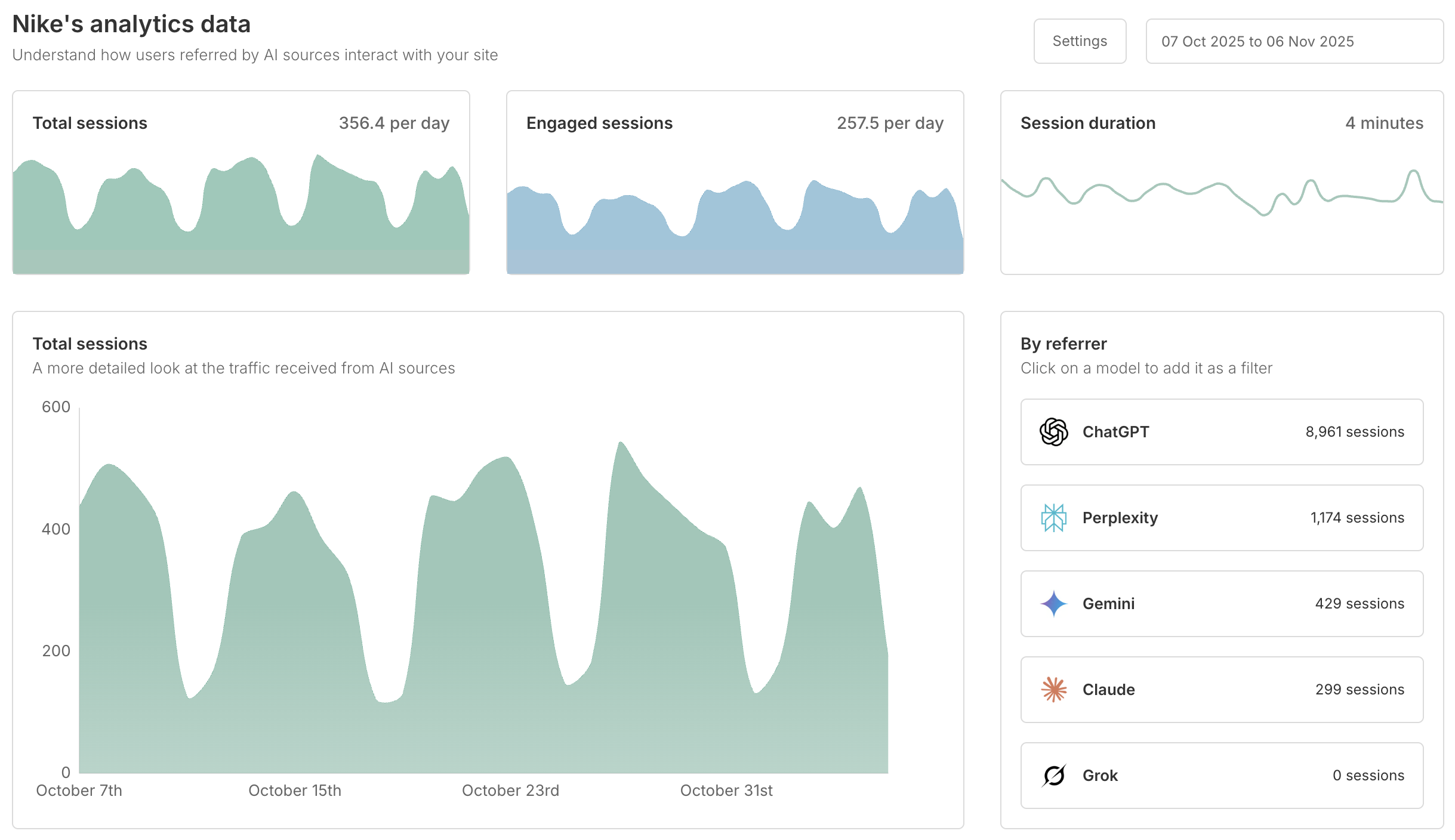
The top of the dashboard shows three key metrics with 30-day trends:- Total sessions: Total AI-referred sessions with average per day
- Engaged sessions: Sessions where users actively engaged with your content
- Session duration: Average time AI-referred users spend on your site
Traffic by AI Source
On the right side, you’ll see a breakdown of sessions by AI referrer:ChatGPT
Traffic from OpenAI’s ChatGPT
Perplexity
Traffic from Perplexity AI search
Gemini
Traffic from Google’s Gemini
Claude
Traffic from Anthropic’s Claude
Grok
Traffic from xAI’s Grok
Detailed Traffic Trends
The main chart shows a detailed view of AI traffic over time. This updates based on:- Your selected date range
- Any AI source filter you’ve applied by clicking a model name
Analyzing Events
Event Selection
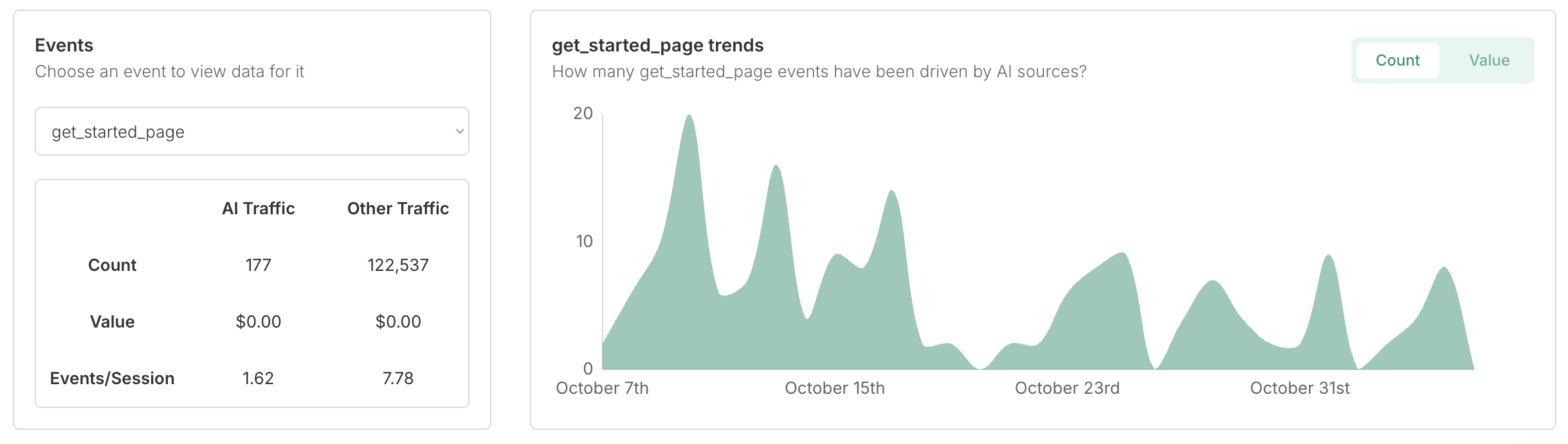
Below the main traffic chart, you can analyze specific events from your GA4 property:- Click the event selector dropdown to choose an event
- Available events include:
- Standard events:
page_view,session_start,user_engagement,first_visit,scroll - Custom events: Any conversion events or custom tracking you’ve configured in GA4
- Standard events:
AI vs Other Traffic Comparison
Once you select an event, Trakkr shows a comparison table:| Metric | AI Traffic | Other Traffic |
|---|---|---|
| Count | Total events from AI sources | Total events from all other sources |
| Value | Monetary value (if configured in GA4) | Monetary value from other sources |
| Events/Session | Average events per AI session | Average events per other sessions |
Event Trends Chart
Below the comparison table, see a trend chart for your selected event with toggle options:- Count: Volume of events over time
- Value: Monetary value of events over time (if configured)
Settings & Management
Adjusting the Date Range
Click the date range selector in the top-right corner to change the time period:- Default: Last 30 days
- Custom ranges available
- Data refreshes automatically when you change the range
Connection Status
If you see a connection error: To fix:- Click Settings in the top-right corner
- Select Reset Integration
- Reconnect with a Google account that has read access to your GA4 property
Disconnecting
To disconnect your GA4 property:- Go to Settings (top-right of the analytics dashboard)
- Click Reset Integration
- Confirm the disconnection
How It Works
AI Traffic Detection
Trakkr identifies AI-referred traffic using UTM source parameters. When AI models refer users to your site, they typically include specific UTM parameters in the referral URL. Trakkr automatically:- Monitors your GA4 data in real-time
- Filters for known AI source UTM parameters
- Aggregates and displays this data in your dashboard
Data Freshness
- Refresh frequency: Data refreshes on each page load
- GA4 delay: Google Analytics 4 typically has a 24-48 hour processing delay for some metrics
- Real-time data: Session counts reflect near real-time data from GA4
Use Cases
Track AI Conversion Performance
Track AI Conversion Performance
Set up conversion events in GA4 (purchases, sign-ups, downloads), then use the Events section to compare conversion rates between AI traffic and other sources.
Identify High-Value AI Sources
Identify High-Value AI Sources
If certain AI models drive more engaged sessions or longer visit durations, focus your optimization efforts on improving visibility in those specific AI tools.
Validate AI Optimization Efforts
Validate AI Optimization Efforts
After implementing technical audits or content optimizations from Trakkr, use this dashboard to measure whether AI-referred traffic increases over time.
Report AI Impact to Stakeholders
Report AI Impact to Stakeholders
Use the visual charts and comparison tables to show executives or clients how AI search is driving real traffic and conversions to your site.
Requirements
GA4 Required
This integration only works with Google Analytics 4. Universal Analytics is not supported.
Read Access
Your Google account must have at least read access to the GA4 property you want to connect.
Troubleshooting
No Data Showing
If your dashboard is empty after connecting:- Check date range: Ensure you’ve selected a period when your site had traffic
- Verify AI traffic: Confirm your site actually receives AI-referred traffic (check UTM sources in GA4 directly)
- Allow processing time: GA4 can take 24-48 hours to process some data
Connection Keeps Failing
- Ensure you’re using a Google account with read access to the property
- Try disconnecting and reconnecting
- Verify the GA4 property ID is correct
- Check if your GA4 account has any restrictions or has been suspended
Data Doesn’t Match GA4
- Trakkr only shows AI-referred traffic (filtered by UTM sources), while GA4 shows all traffic
- GA4 has processing delays; data may take time to appear
- Different date ranges or timezone settings can cause discrepancies
Related Features
Looking to improve your AI traffic beyond just tracking it? Check out:- Technical Audit - Optimize your site for AI crawlers
- Optimize Content - Make your content more citation-worthy
- Crawler Analytics - See which AI crawlers are visiting your site